Windows 11 ships with a default configuration optimized for Microsoft's ecosystem, not for user sovereignty. Pre-installed AI, widget-driven clickbait, and service prompts create a noisy interface that fragments attention and reduces computational efficiency. For users who value a lean, distraction-free environment, the default state is suboptimal. This guide outlines four targeted settings changes that restore user control over the system's visual and informational surface.
Why Windows 11 defaults create unnecessary cognitive load
The operating system's default configuration treats the desktop as a broadcast channel for Microsoft services. This design philosophy prioritizes engagement metrics over user agency. The result is a cluttered interface where irrelevant information competes with productive work. For users who prefer a clean, deterministic environment, these defaults are a liability.
Disable widgets on the lock screen and taskbar
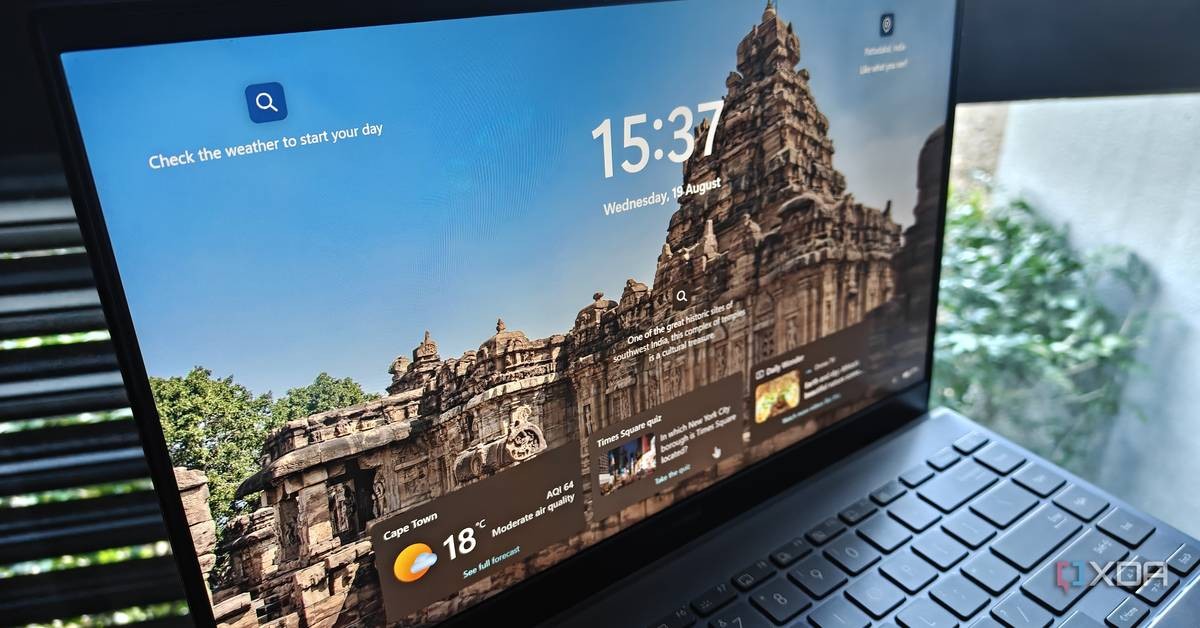
Widgets are the primary source of visual noise in Windows 11. They appear in two locations: the lock screen and the taskbar. The customization options are insufficiently granular. For example, enabling a weather widget on the lock screen also activates news and financial market widgets. The taskbar widgets board similarly surfaces irrelevant content.
The solution is total deactivation. Navigate to Settings > Personalization > Taskbar and disable the Widgets toggle. For the lock screen, go to Settings > Personalization > Lock screen and set Lock screen status to None.
Remove Start menu recommendations
The Start menu defaults to a recommendation engine that suggests apps, tips, and files based on usage patterns. This is a distraction layer that adds no value for users who know their own workflows. To disable it, go to Settings > Personalization > Start and turn off Show recommendations for tips, shortcuts, new apps, and more. Additionally, disable Show recently added apps and Show recommended files to prevent further clutter.
For display preferences, the default Category view groups apps into blocks. The List or Grid view offers a more direct, alphabetical presentation that is easier to parse.
Purge pre-pinned applications
Windows 11 pre-pins shortcuts to the Start menu without user consent. These are not settings but default actions that require manual reversal. Right-click on unwanted apps and select Remove from Start. For folders, drag apps out individually before removal. This process eliminates the pinned section entirely, leaving only user-initiated shortcuts.
For frequent access, taskbar shortcuts are more efficient than a populated Start menu. A minimal taskbar reduces visual scanning time and accelerates workflow.
Disable search highlights
Search highlights push trending searches, suggested games, and trivia. This is another Microsoft content distribution channel disguised as a feature. The toggle is located at Settings > Privacy & security > Search. Disable Show search highlights to restore a clean search interface that displays only top apps and relevant query shortcuts.
This setting is buried in the privacy menu rather than personalization, which reflects a broader pattern: useful controls are often obscured by the very bloat they govern.
Is a de-bloated Windows 11 worth the effort?
Yes. The cumulative effect of these changes is a system that respects user attention. The default configuration is designed to push Microsoft's ecosystem, not to serve the user's workflow. By disabling widgets, recommendations, pre-pinned apps, and search highlights, the operating system becomes a tool rather than a billboard.
This aligns with a broader principle: users should control their digital environment, not the reverse. The settings exist, but they are not defaults. Reclaiming them is a small act of digital sovereignty.
Frequently asked questions
Can I re-enable widgets if I change my mind?
Yes. All settings changes are reversible. Navigate back to the respective menus and re-enable the toggles. The system will restore the default behavior.
Will disabling recommendations affect system performance?
No. These settings only affect the user interface. They do not impact system resources or background processes.
Are there other settings to reduce Windows 11 clutter?
Yes. Users can also disable animations, remove taskbar badges, and customize the notification center. The four settings above are the highest-impact changes for visual decluttering.